Showing posts with label export data. Show all posts

Sunday, October 15, 2017

MS SQL SMS export large data to Excel without breaking format

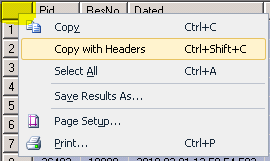
If you often work on MS SQL, surely sometimes you want to export large data (result a query) to Excel file. After querying on MS SQL SMS (Microsoft SQL Server Management Studio), you can use right click on the cell top left then select "Copy with Headers" and copy to Excel file or "Save Result As" and save to a CSV file.


However 2 these functions have their problems. "Copy with Headers" cannot copy large data.  "Save Result As" often breaks CSV format if your data contains some special characters.

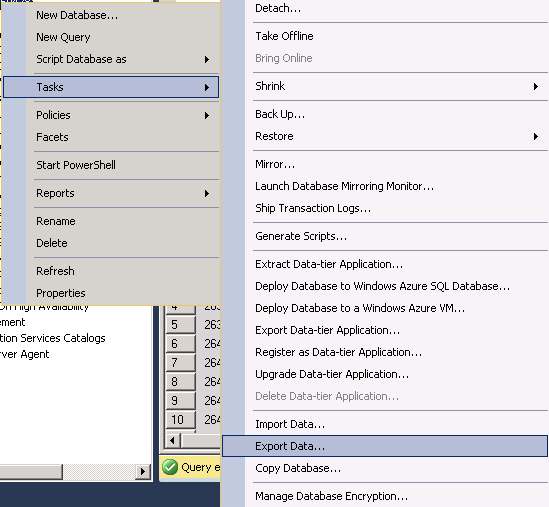
Fortunately, there is another function for exporting large data without breaking its format. Right click on your database and choose Tasks >> Export Data...


For Data Source, choose SQL Server Native >> select Server name >> select your Database, see the following for example:


Next, select Destination as Microsoft Excel & specify Excel file path.


Next, select Write a query to specify the data to transfer.


In next step, paste your query into or select a file containing your query. In the step Review Data Type Mapping, let review again columns have been converted data (Source Type vs. Destination Type). If you want to fix, click Back to select again Destination Type for converting.

If they are ok, click Next then Finish (don't worry for warning signs). Waiting a moment and you will have your Excel file with correct format you wanted.

Yeah! This is a small tip for you, hope it is useful. Share it to your friend for helping him or her out 😍. Any comment is welcome!

Happy Halloween!

Friday, October 19, 2012

Export MSSQL 2012 and Import to old version

A. Export from MSSQL 2012
1. On Microsoft SQL Server Management Studio of SQL Server 2012. Right click on the database that you want to backup and select Tasks >> Generate Scripts.
2. On tab Introduction of Generate and Publish Scripts screen, click Next.
3. On tab Choose Objects of Generate and Publish Scripts screen, select Script entire database and all database objects, then click Next.
4. On tab Set Scripting Options, click Advanced button
5. On Advanced Scripting Options screen:
  -set Script for Server Version to old version which you want (e.g. SQL Server 2008 R2);
  -set Types of data to script to Schema and data
  -in Table/View options: select types of scripts which you want
6. After selecting advanced options, then file name to save and click Next
7. Wait for finishing

B. Import to old version (e.g. MSSQL 2008 R2)
- Open SQL Server Management Studio >>  open the sql file and run to import
- In the case large file, you can run command:
SQLCMD -E -i input.sql -o output.txt
-Or run command below, if you want to import to existing DB
SQLCMD -E -d db -i input.sql -o output.txt


Wednesday, September 19, 2012

MS SQL 2008 R2: Export table data to SQL file

1. Right click on the DB
2. Select Task >> Generate Scripts
3. In Choose Object section, select specific database objects
4. Select your tables
5. Next, in Set Scripting Options, click Advanced button >> Types of data to script >> select Data only

Hint:
For old versions of MS SQL, using Sql Server Management Studio 2008 R2 to connect & export data
Subscribe to RSS Feed Follow me on Twitter!