Showing posts with label template. Show all posts

Sunday, July 23, 2017

Playing with template in Joomla 3.x

Template is the heart of Joomla. Almost of things which you need for your website, just do them in your template. In the template, you can override other extensions (components & modules)  without touching to their source code. So you can easily update new versions of the extensions or Joomla without impacting to the front end of your website. This is very important because Joomla community often releases security fixes which you should update immediately for your website if any.

In this article, I will collect & introduce to you some tips which you can play with Joomla's template to setup your website beautifully, quickly and security.

1. Uninstall unnecessary templates

If you don't use a template, let remove it. Less code that means your website is more lightweight, faster and more security. Below the steps to install a template:
  • Go to menu Extensions >> Manage >> Manage
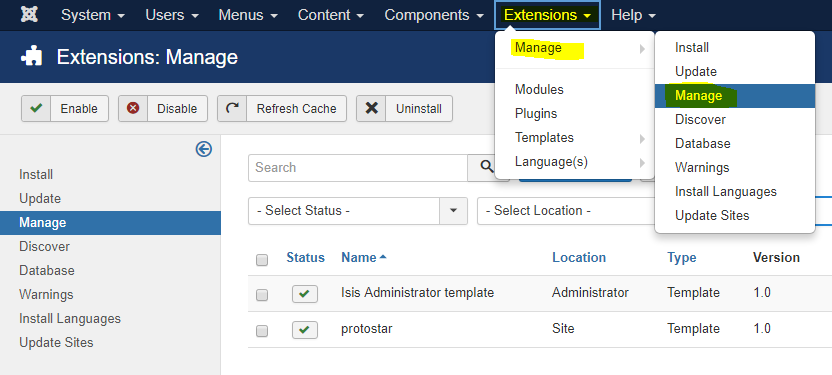
  • Click Search Tools button >> select type as Template >> click the check box of a template wanted to install >> click Uninstall button.

This will remove permanently all source code of the template from your site.

2. Edit source code of a template, code your website on mobile devices

Joomla 3.x provides an editor for editing source code of any template. It is very powerful. I think it is a strength of Joomla against the other CMS. With this editor, you can code your website when you are travelling on mobile devices like smart phone or tablet.
To open the editor for your template, go to Extensions >> Templates >> Templates >> click on the template name:
It will open a screen with files & folders of source code in left side. Here you can do many actions via buttons on the top. Click Documentation button if you want to learn more about this editor. To edit a file, click on its name:


Above are buttons I often use. The right side is source code of selected file. To change for editing the other file, just click on its name. Soo cool 👍

3. Compile LESS file

Another weapon of Joomla is it supports to compile LESS file directly on the template editor. You don't need to install any extra tool. To know what is LESS, let read: http://lesscss.org.

LESS files are often in less folder. If you open a LESS file on the editor, it will show Compile LESS button. After compiling, it will translate into a CSS file corresponding with LESS file in css folder. The template file uses CSS file to present its styles.


4. Create overrides for extensions

In manual way, you must copy the original PHP file from the source of extension into a proper place in your template directory. The correct directory structure for your override file is:
templates/TEMPLATE_NAME/html/EXTENSION_NAME/VIEW_NAME/FILE_NAME.php
You can read here for an example.

However in Joomla 3.x, you can also create overrides for extensions by clicking Create Overrides tab then click an extension (module, component, layout) which you want to override in the template manager.


5. Customize Protostar template

As a beginner of Joomla template coding, one of the fastest way is studying & customizing an existing template. What is good template for you starting? I recommend the Protostar template. It is one of the two front-end templates included with a Joomla 3.x source code. Protostar likes a blank responsive template, it is simple but displays well on many devices. So you can build your own template from this template with a basic knowledge about PHP, JavaScript & CSS.

In this section, I give an example on how to create a mobile menu which displays all submenus without touching on parent menu. By default, a submenu will be showed when hovering on parent menu. You can do this action on desktop with mouse, but cannot in a mobile with touching screen. It causes your submenu is never reached on the mobile.

By adding below code into template.less file (in @media query for mobile screen) and re-compile it in the template editor, you will have a proper menu on mobile:

@media (max-width: 480px) {
//start changes
    .navigation .nav-child {
        display: block;
        position: unset;
        float: unset;
        border: unset;
        box-shadow: unset;

        &:before {
            display: none;
        }
    }
    .navigation .nav > li > .nav-child {
        &:before {
            display: none;
        }
    }
//end changes
    .item-info > span {
        display:block;
    }
    .blog-item .pull-right.item-image {
        margin:0 0 18px 0;
    }
    .blog-item .pull-left.item-image {
        margin:0 0 18px 0;
        float:none;
    }
}

Here are screens for desktop and mobile:

It's time to go to bed. Bye everyone! Any comment is welcome.

Wednesday, June 20, 2012

Joomla mobile template

Some Joomla templates support mobile devices. It's the easiest way to create a mobile template for Joomla.


But if you built a template, you can use some extension to present your website on various mobile device types. Mobile Joomla might be one of the first plug-ins recommendations.

You can read this article to know more about Joomla mobile solution.

For concepts of mobile template,  read this article may be helpful for you, too.

Thursday, June 14, 2012

Joomla! 2.5: overwrite category blog layout template

Rule to overwrite a view of a component:
1. Add a copy of the component view file to the folder of your template with the following rule structure:
templates/TEMPLATE_NAME/html/EXTENSION_NAME/VIEW_NAME/FILE_NAME.php

2. After that modify it in your way.

To overwrite category blog layout (view): let copy and modify the files below:
-templates/[template name]/html/com_content/category/blog.php: present structure layout options (see meaning of Layout Options at the bottom)
-templates/[template name]/html/com_content/category/blog_item.php: present an item (article) in the blog layout

Layout Options:
# Leading Articles -> This refers to the number of articles that are to be shown to the full width
# Intro Articles -> This refers to the number of articles that are not to be shown to full width
# Columns -> This refers to the number of columns in which the articles will be shown that are identified as #Intro. If #Intro is zero this setting has no effect
# Links -> Number of articles that are to be shown as links. The number of articles should exceed #leading + #Intro

More ref:
http://docs.joomla.org/How_to_override_the_output_from_the_Joomla!_core
http://kiteplans.info/2012/04/18/how-to-joomla-1-7-2-5-full-text-in-category-blog-layout-template-override/
http://forum.joomla.org/viewtopic.php?f=619&t=615539
http://docs.joomla.org/Understanding_Output_Overrides
http://construct-framework.com/intermediate/creating-a-core-output-override-in-construct-unified-for-joomla-16-and-molajo
http://docs.joomla.org/Layout_Overrides_in_Joomla_1.6
http://forum.joomla.org/viewtopic.php?t=677301

Monday, January 9, 2012

How do I remove the Powered by Blogger from my Blogger blog?

In order to remove you will need to edit the blogger template and delete the attribution widget in the new Blogger interface.

If you are using the old interface, please read this post on removing Powered by Blogger in old Blogger interface.


Please backup your blogger template before you make any changes to it. This helps to revert back to the original template when something goes wrong while editing your template. The steps for backup and restore are discussed here in detail.

Steps to remove the Powered by Blogger text from your blog in the new Blogger interface:
1. Click on the Template link in the left navigation menu.


2. Click on the Edit HTML button

.
3.Select the Expand Widget Templates check-box

4. Remove the following highlighted code.

5. Click on Save Template Button.
6. A warning is displayed.Click on Delete Widgets and click on Save Template Button.

Blogger Template Design: Introduction


Blogger Template Design: Introduction

This tutorial is a very quick guide to teach you how to change or design your own Blogger templates. It's easy to understand and follow, especially to those who has no knowledge in HTML programming.

The tutorial is split into a number of sub-tutorial modules that explain specific parts of Blogger template design in detail. The best way to learn is by going through the module sequence one by one. But if you are familiar with the basics, you can jump into the more advanced modules. The earlier modules are focused on explaining the basic structure of the template design and the template code so that you understand more about a Blogger template in general. The later modules explain each section of a Blogger template in more detail and help you go through the process of coding and designing a template in a step-by-step approach.

In the tutorial, some of the names and terms are based on my own template design, but I'll explain them as general as possible so you get the bigger picture and can adapt to different template designs.

Tutorial Contents
Subscribe to RSS Feed Follow me on Twitter!